Blog
A personal cloud at home: your files on your own drive, reachable from anywhere
The final instalment of our bespoke software series: Personal Cloud Storage, the cloud you build with a Raspberry Pi and a USB drive, which receives your computers' backups and never opens your home to the internet.
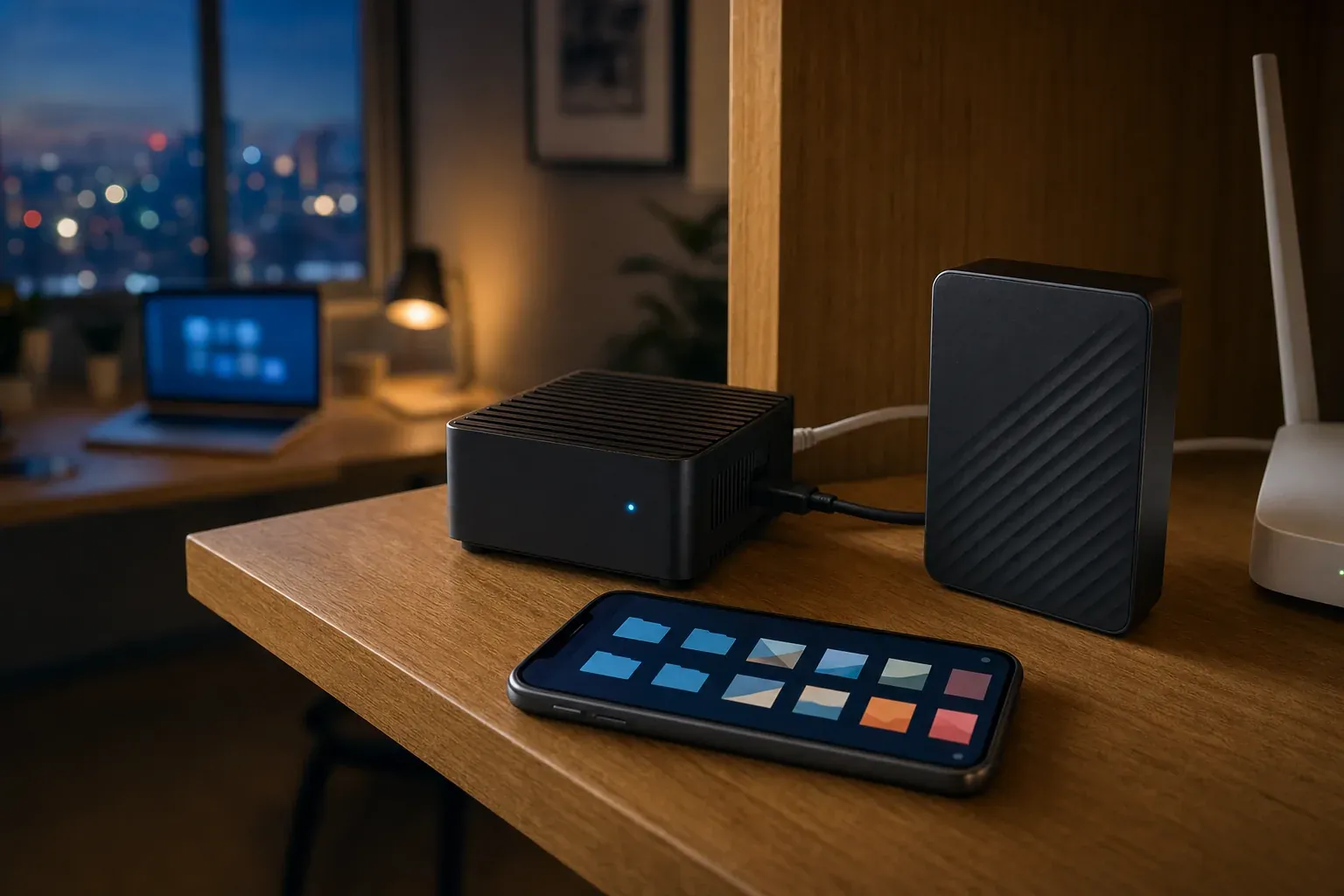
Your phone photos are in one service, your documents in another and your computer backups on a drive you hardly ever plug in. Each service has its own quota, price and terms, and they all have one thing in common: your files live on someone else's servers.
There is another option that, a few years ago, was strictly for specialists: a cloud of your own, at home, built with a computer the size of a deck of cards and a USB drive.
A well-designed personal cloud does not have to be complicated or fragile: your files stay on your drive, you can reach them from any device and nobody else decides what happens to them. This is the last of three instalments about the tools we have built for critical processes, after backups with DEV Backup Studio and disk space control with Desktop Free Space.
Why a cloud at home
The Data Backup Options guide from US-CERT, published by CISA, points out that with a provider's cloud, users surrender most of their control over their data and may become locked into that provider.
This is not about giving up cloud services, which have their place. It is about making sure that what matters, such as family photos, projects or computer backups, also has a place of its own: a drive you can touch, on a network you control.
Personal Cloud Storage: a small server and a USB drive
Personal Cloud Storage is the personal cloud we built to be that place. It runs on a small Linux server, whether a Raspberry Pi, a mini PC or an old laptop, with a USB drive in exFAT or NTFS, and it does not depend on any third-party service. The first version was released on 14 November 2026 and the project is still being updated.
It is free and open source, under the MIT licence. The code, documentation and instructions are in the github.com/crazyramirez/personal-cloud-storage repository, and versions are on its GitHub releases page.
Installation takes a single command on the server, and the installer asks only three questions:
- Which drive to use, from the exFAT or NTFS drives connected.
- Whether you want viewers for video and Office documents.
- Whether you want access from outside home, which is optional and private.
On a Raspberry Pi it takes 10 to 20 minutes, mostly downloading. When it finishes, it shows the cloud's address and a one-time code to create your account. If you use an AI assistant with a terminal, you can also ask it to run the installation following the repository's own rules: never format drives, never ask for passwords and never open the server to the internet.
Everything from the browser
The cloud is used through a web app designed for phone and desktop, in seven languages:
- Files and folders: create, move, copy, rename, download, zip, a recycle bin and recent items.
- Resumable uploads: if the connection drops, the upload carries on where it stopped and never overwrites an existing file.
- Viewers for images, video, audio, PDF and Office documents.
- Secure accounts: passwords hashed with Argon2id or passkeys, sessions you can revoke and an audit log.
The golden rule: a missing drive is never treated as deleted
In a home cloud, the weak spot is the drive: a cable comes loose, the power supply struggles or the drive is slow to respond. Personal Cloud Storage starts from a rule its documentation calls the main mandate: the drive being absent, disconnected or failing must never be read as a deletion, nor trigger writes to the system disk.
One component watches the drive and blocks writes as soon as it disappears, hangs or changes. On top of that, files remain ordinary files: if you ever plug the drive into a Windows or macOS computer, you can read them as they are, with no proprietary formats.
The documentation is just as clear about the limits: the cloud's drive is not a backup. If it fails, the data is lost. That is what the backup to an external USB drive is for: when you plug it in, the cloud recognises it, copies only what is new or changed, sets deleted items aside by date instead of removing them and ejects the drive when it is done.
Security without opening your home to the internet
The cloud is never exposed to the internet. At home it runs over HTTPS thanks to Caddy, which, according to its documentation, serves local names and addresses with its own certificates that clients need to trust; that is why the browser warns you the first time, until you install the cloud's certificate authority.
To reach it from outside, remote access is optional and goes through Tailscale, which creates encrypted point-to-point connections with WireGuard without having to open ports on your router, as its documentation explains. With Tailscale on your phone too, the cloud opens away from home just as it does from the sofa.
The full workflow: three copies without the effort
This is where the three pieces of the series come together. The cloud can share one folder on the home network, called DEV_Backup_Studio, and only that one, so computers can store their backups in it. Connecting a computer takes a minute:
- In the cloud's web app, Settings → Your computers' backups → Connect a computer. A six-digit code appears, valid for ten minutes and usable once.
- In DEV Backup Studio, Connect to my cloud. The app finds the cloud on the network; type the code and you are done, with no addresses or passwords.
From then on, the computers at home back themselves up to the cloud without plugging in any drive. Each computer has its own folder, visible from any device. Add the cloud's backup to an external drive and you have three copies: the original on the computer, the copy in the cloud and a third on another drive. It is the 3-2-1 rule from part one, applied at home. If the cloud is switched off, the app says so within a second and offers to sync as soon as it is back.
Desktop Free Space closes the circle on each computer: with the backup done, you can free up space knowing that what matters is safe.
What this series leaves behind
All three tools share the same idea: when a process is critical, the tool should adapt to the way you work, your data should sit where you decide and every step should be verifiable. Not everything deserves its own software, but what does changes your relationship with technology: you stop adapting and start deciding.
If your company has a process that depends on a tool that does not fit, tell us how you work. At Viseni, we develop bespoke software built around your workflow, with your data under your control.