Blog
Disk space: the tool we built to see what fills it and delete without fear
Part two of our series on bespoke software: Desktop Free Space, the disk space manager that maps your drive, separates what is safe from what needs a second look and never deletes without showing you the list.

The warning pops up halfway through a render or a build: you are running out of disk space. You open the file manager, go folder by folder and cannot find where tens of gigabytes have gone. In the end you delete something that looks expendable and hope for the best.
On a work machine, space rarely fills up with one huge file. It fills up with thousands of leftovers: browser and developer tool caches, AI models downloaded for a quick test, duplicate copies and folders from programs that no longer exist.
Freeing up space should not be a leap of faith: first see what takes up room, then delete knowing what will regenerate and what will not. This is the second of three instalments about the in-house tools we have built for critical processes; the first covered backups with DEV Backup Studio.
Why the disk fills up without you noticing
Much of the lost space sits in folders you do not see at a glance. Ollama, for example, stores models in ~/.ollama/models on macOS and in C:\Users\%username%\.ollama\models on Windows, according to its documentation. The Hugging Face library uses a shared local cache that lives in ~/.cache/huggingface/hub by default.
None of this is a mistake: caches exist so you do not download the same thing twice. The problem is that they grow on their own, in paths almost nobody checks, and every tool keeps them somewhere different.
What operating systems already offer, and where it falls short
Operating systems ship their own utilities. Windows Storage Sense, according to Microsoft, can free up space by removing temporary files and items in the Recycle Bin; with the default settings it runs when the device is low on space, and it only works on the system drive.
For general use, that is enough. In a studio that works with development, 3D and AI, it falls short: it cannot tell the npm cache from the Gradle one, does not know which AI models are installed and does not show at a glance which folder weighs the most or what can be deleted without consequences.
Desktop Free Space: look before you delete
Desktop Free Space is the disk space manager we built to solve this. It is an open-source desktop app, under the MIT licence, for Windows, macOS and Linux, available in seven languages. Version 2.8.1 was released on 19 November 2026.
Download it free for Windows, macOS or Linux from the Desktop Free Space releases page on GitHub: an installer or portable .exe for Windows, a .dmg for macOS and a .deb or .tar.gz package for Linux. The code and documentation are in the github.com/crazyramirez/desktop-free-space repository.
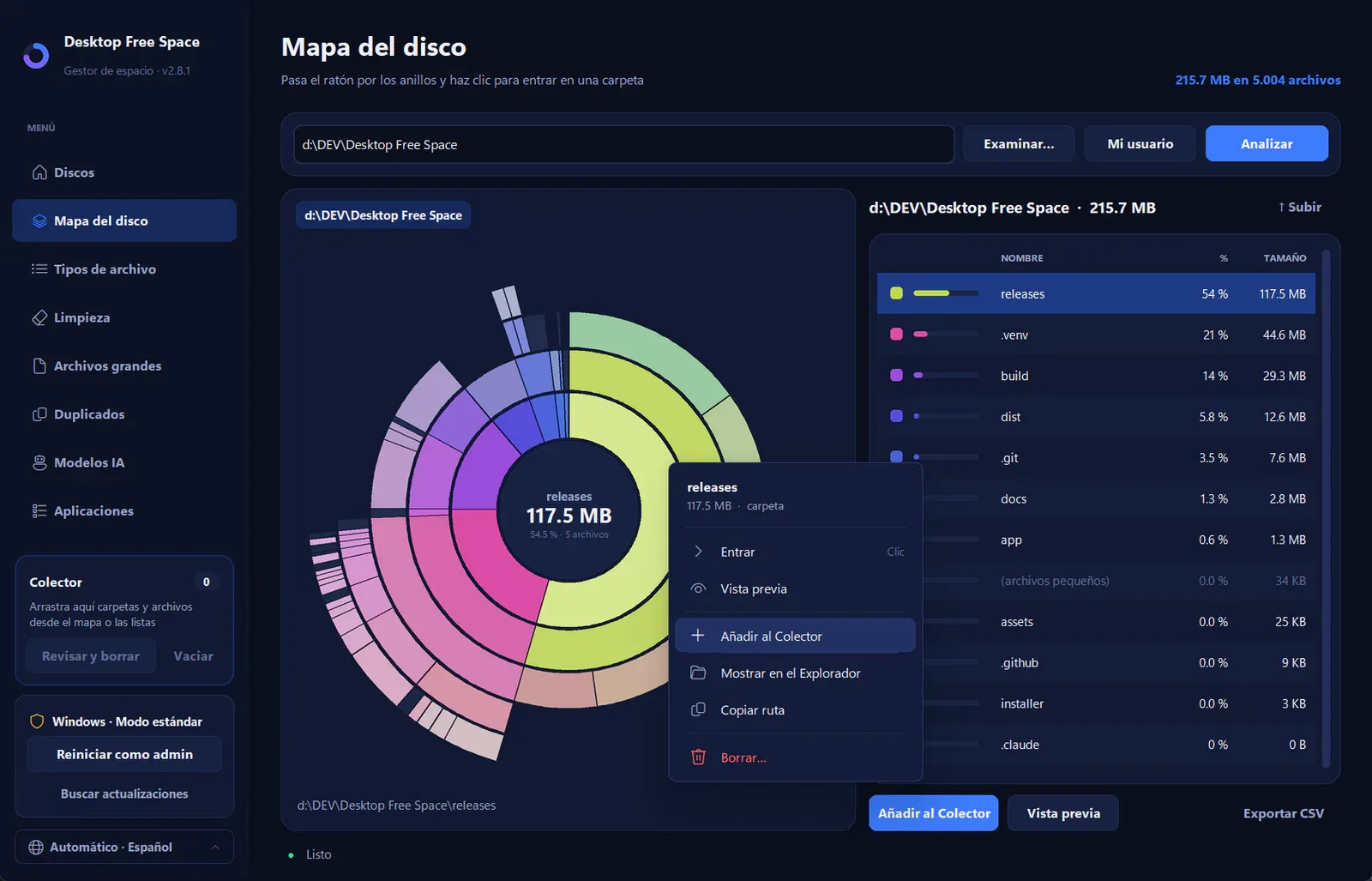
Its central screen is a ring-shaped disk map: each ring is a folder level and each arc is as large as the space it takes. Hover to see size and percentage, click to open a folder and click the centre to go back up. When you scan a whole disk, the gap between used space and what could be read appears as a grey segment, so nothing stays hidden.
Cleaning up knowing what regenerates
The Cleanup tab works out the size of each category and labels it Safe, because it regenerates by itself, or Review, because it would need downloading again. Categories adapt to each system:
- System: temporary files, Windows Update, memory dumps, thumbnails, logs and GPU shader caches.
- Browsers and apps: caches from Chrome, Edge, Firefox or Safari and from Electron apps. Passwords, history and sessions are never touched.
- Development: pip, npm, yarn, pnpm, Gradle, Android, Cargo, Xcode, Unity and many more.
- AI and models: Hugging Face, Ollama, LM Studio, PyTorch Hub, Whisper and others.

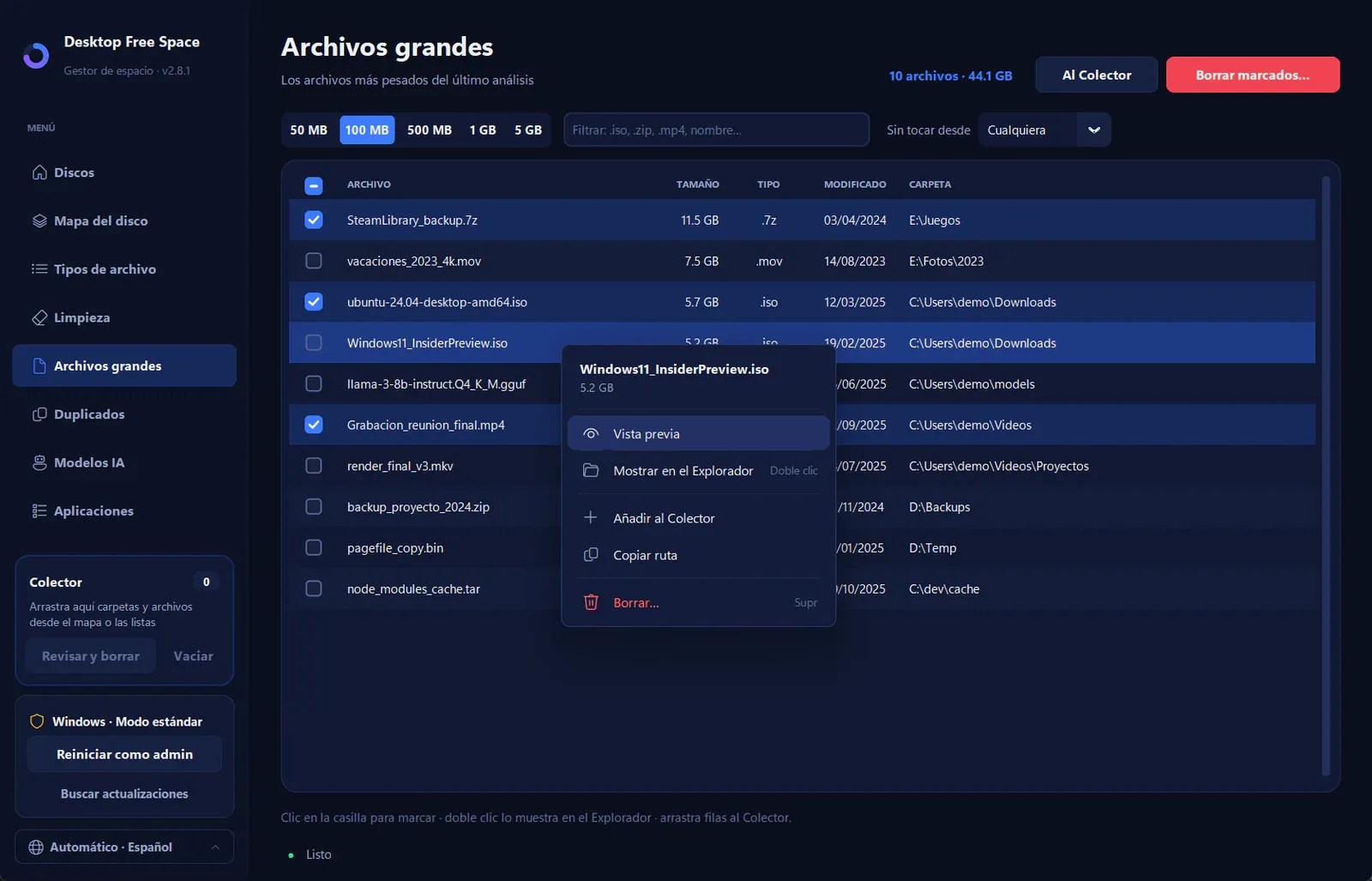
The app also finds large files, with filters by size, extension and age; identical duplicates by content, using a BLAKE2 fingerprint to avoid false positives; AI models, with Ollama models listed by name; and possible leftovers from uninstalled programs. Anything you want to delete can be dragged into a Collector and removed at the end, after reviewing the full list.
Designed not to break anything
In a tool that deletes files, safety is the main feature. These are the rules it follows:
- Nothing is deleted without confirmation. You first see the full list of what will go and how much it takes.
- Recycle Bin or permanent deletion, your choice every time.
- Protected paths. It never deletes drive roots, system folders, keys (
~/.ssh,~/.gnupg) or the user's base folders; their contents yes, the folders themselves no. - A warning in program folders. It recommends uninstalling rather than deleting the folder by hand.
- No risky shortcuts. It does not follow symbolic links and quietly skips files in use.
- Updates that ask first. It tells you when a new version is out, checks its SHA-256 fingerprint before installing and never updates on its own.
Possible program leftovers are an estimate, and the documentation itself asks you to review them before deleting. It is the same principle as in part one: check instead of assuming.
One more piece of the same workflow
Backups and free space are more closely linked than they seem. A full disk gets in the way of backups, and a clean-up without a prior backup turns any mistake into a permanent one. That is why they make sense together: back up first with DEV Backup Studio, then clean up with Desktop Free Space, knowing that what matters is already safe.
In the third instalment we will close the loop with Personal Cloud Storage, the personal cloud you set up at home and where DEV Backup Studio can already store its backups.
If your team loses time with tools that do not match the way you work, tell us which process you want to solve. At Viseni, we develop bespoke software built around your workflow, with your data under your control.